
For streamers
Separate OBS audio tracks for viewer controls
Set up separate audio tracks in OBS for a personal viewer mix. Route sources to Faders layers while keeping your broadcast and recording settings clear.
Separate OBS audio tracks are what Faders turns into viewer controls: each track you assign becomes one slider in the extension. Use Advanced Audio Properties in OBS to assign each source to the tracks you need. Faders reads separate tracks as audio layers, so each viewer can set their own volume levels without changing your broadcast.
This guide uses Faders’ default Voice, Game and Music layers. Start with the OBS plugin setup guide if you have not installed and connected the plugin yet.
#Recording tracks, broadcast audio and viewer layers
These settings have different jobs:
- Your broadcast mix is what viewers normally hear on Twitch. This guide assumes it uses track 1; keep your existing broadcast sources on that track.
- Recording tracks are saved into your local recording for editing later. Choose which tracks to record in Settings → Output → Recording (see OBS's Standard Recording Output Guide). Assigning a source to a track does not, by itself, enable that recording track.
- Faders layers are the separate tracks the plugin sends to viewers using Faders. Each viewer adjusts their own levels in the extension. This does not change your broadcast or recording mix.
OBS can assign a source to more than one track. Faders’ defaults are:
| Faders layer | OBS track (default) |
|---|---|
| Voice | Track 2 |
| Game | Track 3 |
| Music | Track 4 |
You can pick different tracks in Tools → Faders → Audio tracks if 2–4 are already in use, for example for VOD audio.
If your Twitch VOD uses track 2, choose another track for the Faders Voice layer rather than changing your VOD setup. Update the source assignments below to match the tracks you choose.
#Set the tracks
- In OBS, open Edit → Advanced Audio Properties (OBS explains this window in its Audio Mixer Guide).
- For each source, keep Track 1 ticked so it stays on your stream.
- Tick the one Faders track it belongs to, and untick the other two.
Don't untick Track 1 (or whichever track Settings → Output → Streaming uses). It's what Twitch gets: a source that's only on a Faders track is silent for everyone else, and with nothing on it your stream has no sound and the extension can't sync.
OBS ticks every track for new sources, so most setups need some unticking. A source on two Faders tracks plays twice for Faders listeners, and the sliders stop separating it.
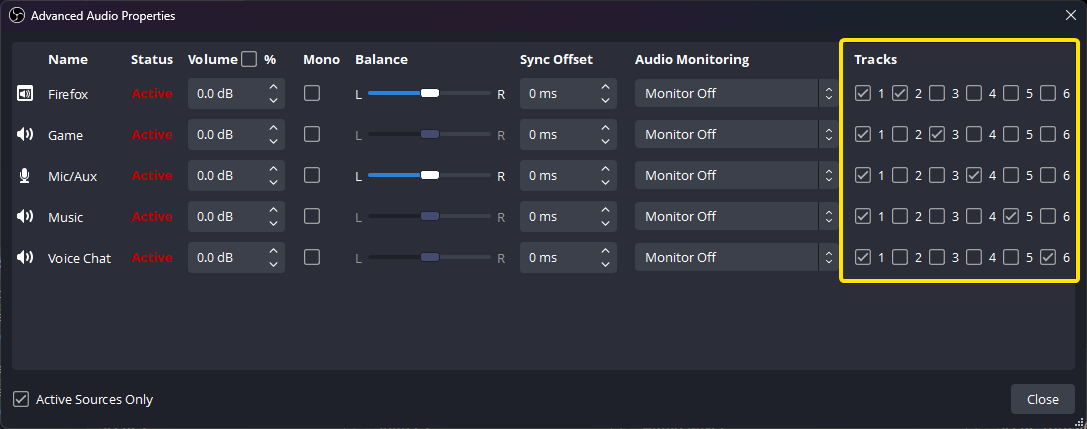
#Example track assignments
For a mic, game, music player and alerts, use this matrix. On means tick the checkbox; Off means untick it. Tracks 5 and 6 depend on your other recording or VOD needs.
| Source | Track 1: broadcast | Track 2: Voice | Track 3: Game | Track 4: Music |
|---|---|---|---|---|
| Microphone | On | On | Off | Off |
| Game app | On | Off | On | Off |
| Music player | On | Off | Off | On |
| Alerts / sound effects | On | Off | On | Off |
The broadcast column keeps the normal stream complete. The other three columns give Faders one copy of each sound. If you use different Faders track numbers, keep the same source-to-layer pattern.
#Why can't Faders listeners hear some sounds?
Because Faders listeners hear only what's on the three Faders tracks, in place of Twitch's mixed audio. Anything left on track 1 alone, such as alerts, is silent for them. Put every source somewhere:
- Voice: your mic, plus Discord or co-streamers if you want them with your voice.
- Game: game audio, alerts, sound effects, TTS and media shares.
- Music: your music player or music bot.
#How do I separate the game from the music?
Capture each app on its own source. If one Desktop Audio source captures everything, Faders can't split it: the game and the music arrive as one sound. OBS's Application Audio Capture Guide covers per-app capture in detail:
- Windows: add an Application Audio Capture source per app (the game, Spotify, Discord) and turn off Desktop Audio, or remove it from the Faders tracks.
- macOS: add a macOS Audio Capture source per app, and use Capture specific applications.
#Common setups
Mic, game and Spotify: mic → tracks 1 and 2; game capture → 1 and 3; Spotify capture → 1 and 4; alerts browser source → 1 and 3.
Just chatting with music: mic → 1 and 2; music → 1 and 4; everything else → 1 and 3.
Co-streaming on Discord: mic and Discord capture → 1 and 2; game → 1 and 3; music → 1 and 4.
#Check it
Go live, then listen on your channel with the extension. Drag each slider to zero in turn: the matching sound should disappear and nothing else. If a sound doesn't move with any slider, it's missing from the Faders tracks. If it moves with two, it's on two of them.
Also check your normal Twitch audio with Faders turned off. If you record locally or use a separate VOD track, check those outputs too: a working Faders mix does not verify your recording or VOD settings.
When the mix is ready, share the viewer setup guide with your audience. If something is missing or plays twice, use streamer troubleshooting.